


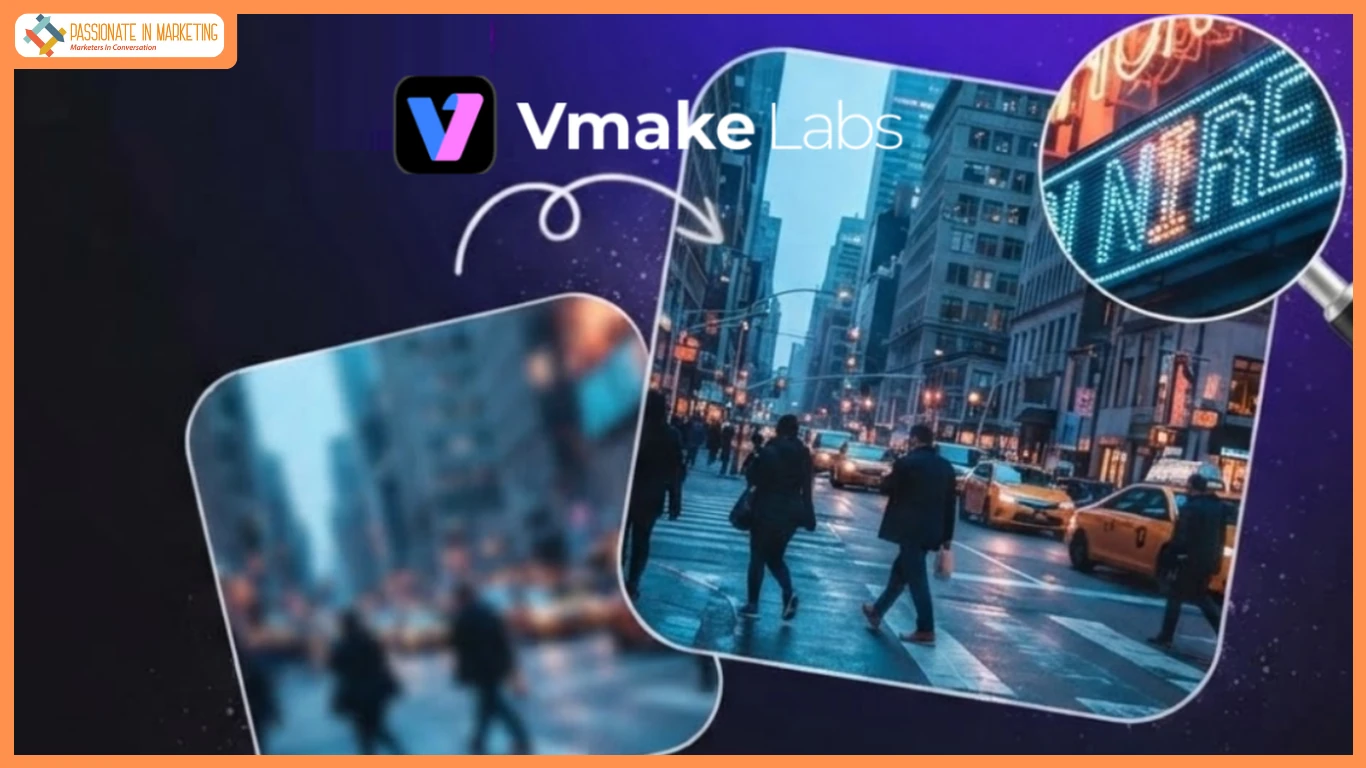
Smartphones make recording videos incredibly easy and FAST. But not every clip turns out as expected. Poor lighting, camera shake, and digital zooming can hurt quality. The result is often a soft, blurry video that looks low on details. While these flaws may not stand out on small screens — they become much more noticeable once the same video is played on larger displays.
Reshooting isn’t always practical. Product demonstrations, behind-the-scenes moments, travel clips, and family memories often happen only once.
When the original footage is all that’s available — a video enhancement tool becomes a more realistic solution. It can help bridge the gap between a rough phone recording and a clip that looks ready to share. Vmake Labs (formerly Vmake AI) video enhancer is designed exactly for this purpose. It offers a simple way to improve footage without spending hours inside complex editing software.
Vmake Labs First Impression
There are plenty of video enhancers available online, but many focus on advanced editing. Multiple settings, technical controls, and long setup processes can make simple improvements feel more complicated than they need to be.
Vmake Labs keeps things much simpler. There’s no software to install before getting started on the platform. It works completely in the browser. The interface is clean & intuitive, and the main features are easy to find.
One of its noteworthy features is the preview option. Instead of processing an entire video first, it allows users to check a sample before exporting the final version. That makes it easier to decide whether the changes match the quality they are looking for.
The overall experience feels designed for people who want better-looking videos rather than professional editors looking for endless customization.
How the Upload Process Works
Getting started with Vmake Labs’ video enhancer requires very little effort. You can upload videos in several different ways depending on where they are stored.
The available upload options include:
- Drag and drop a video file
- Upload directly from a computer
- Paste a video link from anywhere on the internet
- Batch upload up to 30 videos at once
Batch uploads are especially useful for creators who are editing “multiple clips” each week. Handling several videos in one session eliminates repetitive work and speeds up the process overall.
During testing, the upload process remained smooth even when multiple files were added together. After uploading, you have the option to pick an enhancement mode.
Vmake Labs Enhancement Modes
Rather than applying one universal filter to every clip, the Vmake Labs platform offers several enhancement modes for different situations.
| Mode Type | Available Options |
| Fast Mode | Original, 2K, 4K |
| Quality Mode | 2K, 4K, 8K |
| Scene Modes | Portrait, Portrait Pro, Product, Lowlight, De-AI, Game, Anime |
The “scene modes” make the biggest difference because different videos usually need different types of processing. For example:
- Product mode focuses on improving fine details, making labels, textures, and edges easier to see. That can help online stores create cleaner product videos without recording everything again.
- Lowlight mode is intended for darker footage. Instead of simply increasing brightness, it works on improving visibility while keeping the lighting balanced.
- Portrait modes focus more on people, while Anime and Game modes are designed for specialized content.
Having separate mode options makes more sense than forcing every video through the same enhancement process.
Fast Mode vs. Quality Mode
Both processing modes serve different purposes.
- Fast Mode prioritizes speed. It works well when videos need to be uploaded quickly, especially for daily social media content. Processing finishes relatively fast while still improving overall sharpness.
- Quality Mode spends more time analyzing the footage before exporting the final file. The longer processing time produces cleaner details and better texture recovery.
Another thing that stands out about Vmake is the availability of various “output resolutions”.
The Fast Mode is compatible with the original resolution as well as “2K” and “K”, whereas the Quality Mode works up to “8K”. It means that users have the option to decide whether they need faster conversion for their regular social media clips or higher quality exports for videos that may be displayed on larger screens.
The results
The most noticeable improvements appeared in several common problem areas.
| Before | After |
| Soft overall image | Better clarity throughout the frame |
| Slight motion blur | Cleaner movement in many scenes |
| Dark footage lacked detail | Improved visibility in shadow areas |
| Product textures appeared flat | Better definition around edges |
| Fine details blended together | Sharper textures and clearer objects |
The changes were visible without making the footage look artificial.
Instead of dramatically altering the original recording, the enhancer focused on improving what was already present.
More Than a Video Enhancer
The video enhancer is only one part of the larger Vmake Labs platform.
Vmake Labs offers additional tools, including:
- AI background removal
- Automatic caption generation
- Video translation
- AI hook generator
- Product photo editing tools
Having these tools available in one place creates a smoother workflow. A creator can clean up footage, improve video quality, generate captions, and prepare content for different audiences without switching between several websites.
That convenience may save both time and money, especially for businesses producing content regularly.
Who Is It Best For?
The Vmake Labs platform is a good fit for several types of users, including:
- Small businesses creating product videos.
- Online sellers preparing social media content.
- Content creators posting short-form videos.
- Marketing teams working with existing footage.
- Anyone trying to improve older phone recordings.
Professional video editors may still prefer software with extensive manual controls, but many everyday users are likely to appreciate the faster workflow offered here.
Takeaway
Blurry phone footage doesn’t always need to be discarded. While no enhancement tool can recreate details that were never captured — improving clarity, reducing softness, and making videos look cleaner is often enough to make older clips usable again.
Vmake Labs Video Enhancer delivers those improvements through a simple browser-based workflow that does not need any advanced editing knowledge. The availability of various enhancement modes, support for 8K resolution and even the ability to do it in batches make the platform convenient for casual and business use.
The results remain realistic instead of overprocessed, which helps videos retain their natural look while appearing noticeably sharper. If you want to sharpen your blurry video taken on your smartphone without spending long hours studying professional editing tools, Vmake Labs Video Enhancer can become your easy solution.
**The opinions expressed in the article are solely the author’s and don’t reflect the opinions or beliefs of the portal**

