


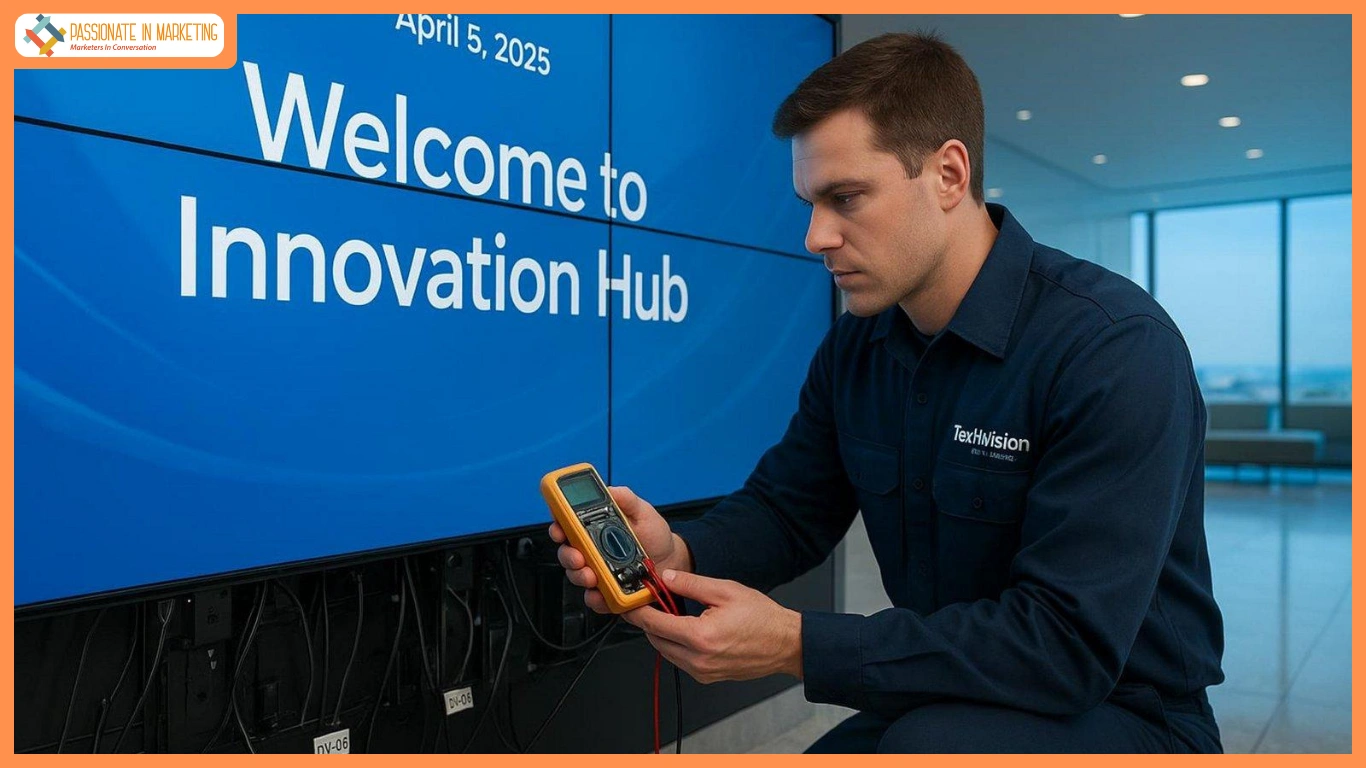
Keeping your digital signage system in good shape is a must if you want the best results and a smooth way to share messages. Your screens, media players, and content tools need regular care to run well. Skipping this can lead to dim or broken screens, annoyed viewers, and wasted money. Think of it like car care: you wouldn’t skip oil changes.
Routine upkeep stops glitches, black screens, and old content that can push customers away and hurt your brand. Stay ahead of problems so small issues don’t grow into big, costly ones.
A poorly maintained screen can hurt more than help, making your brand look unreliable. For a reliable platform that makes many maintenance jobs easier, check LOOK for real-time monitoring and automated updates.
Digital signage is not a “set it and forget it” setup. Even high-end screens need regular checks to stay clear, responsive, and effective. This guide explores digital signage care from simple hardware checks to software updates and network security.
With a clear maintenance plan, you can extend hardware life, boost audience attention, and avoid surprise outages that interrupt work and cut into profits. We’ll cover what maintenance includes, step-by-step tasks, tips for hardware and software, and extra steps for outdoor screens so your system stays sharp, dependable, and useful for years.
What Does Digital Signage Maintenance Involve?
Digital signage maintenance covers many tasks that keep your system in top shape. It’s more than wiping screens. It includes hardware, software, and your network setup. Knowing these parts helps you build a solid plan that works.
Below are the main areas of care and what they include. From cleaning hardware to updating software and checking the network, each piece plays a key role in system life, reliability, and best performance.
Routine Hardware Inspections and Cleaning
Your screens, media players, mounts, and cables face daily wear. Dust, dirt, fingerprints, and bumps harm both looks and performance. Regular inspections and cleaning are basic but necessary.
Go beyond a quick wipe. Check for cracks, dead pixels, or odd lines that hurt image quality. Look at cables for loose ends, frays, or bad seating, which can cause flicker or signal loss. Clear vents on screens and players so they don’t overheat, which shortens life. Use soft, lint-free cloths and screen-safe cleaners to avoid scratches. For outdoor units, also inspect weatherproof cases and seals.

System Software and Firmware Updates
Software always changes. Developers release updates to fix bugs, raise security, improve performance, and add features. Keep your operating system, CMS, and media player firmware current.
Old software can slow your system, break compatibility with new files, and open the door to cyber risks. Plan updates during off-hours, test on one device first, and keep a rollback plan ready. This keeps your system stable, safe, and ready for new formats and features, avoiding stuck content, unresponsive touch, or random errors.
Network and Connectivity Checks
Most digital signage depends on a steady network for content, updates, and control. Network issues lead to black screens, playback errors, or loss of control. Regular checks help avoid this.
Verify both Ethernet and Wi-Fi links. Watch signal strength, review settings, and fix signs of dropouts or slow loads. Inspect physical network cables for damage or loose plugs. If you manage displays remotely, test remote access so you can update and control screens without delays.
Environmental Monitoring and Adjustments
The space around your screens affects how long they last. Heat, moisture, dust, and sunlight can wear out parts fast, especially outside.
Place displays where air can flow and heat can escape. Watch for moisture or big temperature swings. For outdoor units, inspect cases, seals, and cooling systems to block rain, dust, UV, and extreme temps. Match brightness to room light to reduce strain and extend backlight life. Handling these factors early prevents hot surfaces, loud fans, and random shutdowns.
Step-by-Step Maintenance Tasks
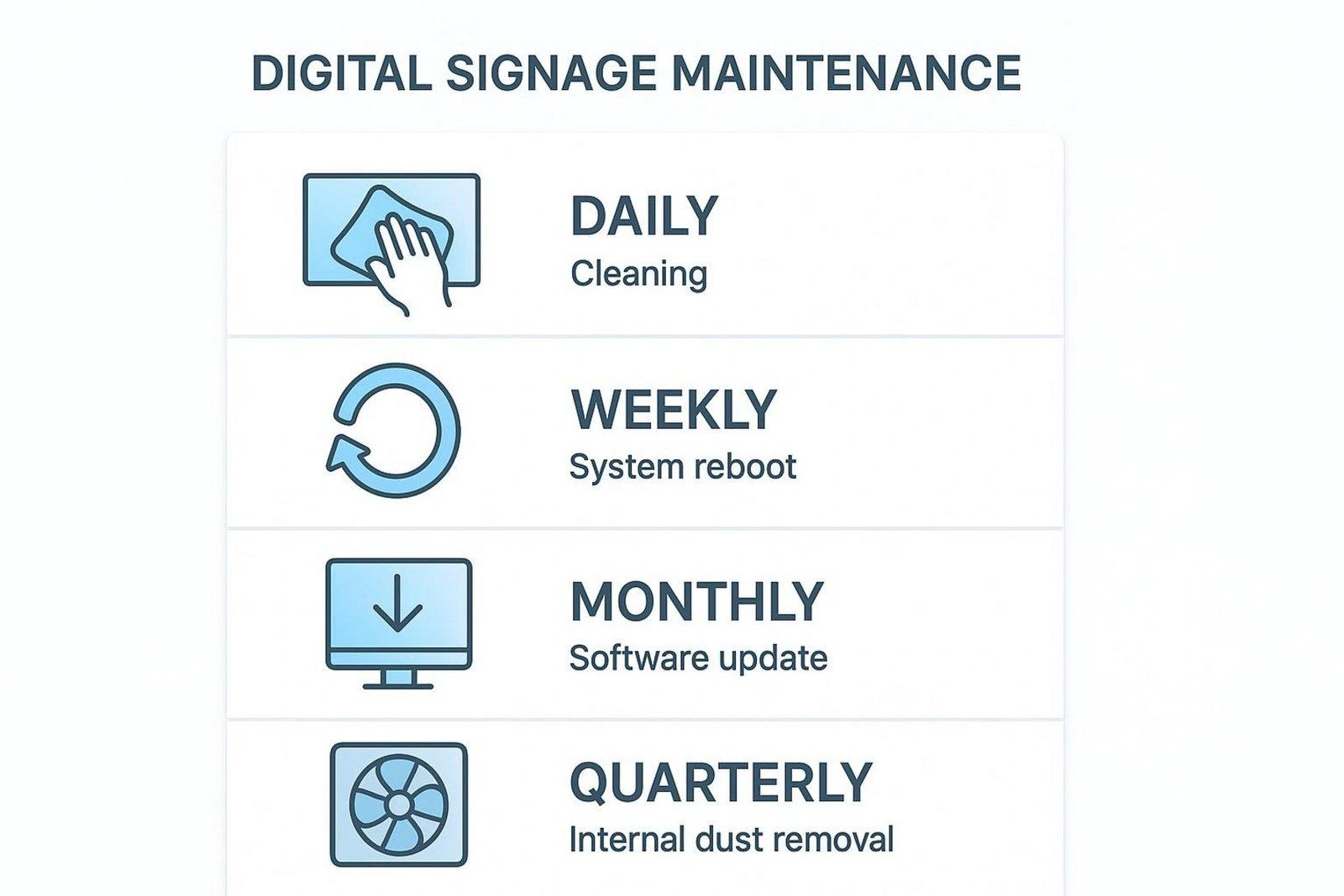
Good maintenance is ongoing. Break the work into daily, weekly, and monthly tasks. A steady routine stops small problems from growing and keeps screens running well. This makes upkeep part of daily operations without overloading your team.
Below is a simple plan with actions by time frame. From quick checks to deeper inspections and updates, these steps offer full care without extra stress.
Daily Checks
Daily checks catch small issues early. They are fast visual scans that prevent bigger failures later.
Each morning, do a quick walk-through. Confirm all screens are on and showing content. Look for flicker, black screens, distortion, or clusters of dead pixels. Confirm the content is current and not frozen or laggy. If screens are interactive, tap to test response. Wipe screens with a microfiber cloth to remove dust and fingerprints. Listen for loud fans, which can signal heat problems.
Weekly and Monthly Inspections
Weekly and monthly checks go deeper and find slow-building issues that daily scans might miss.
Each week, restart media players and displays to clear cache and refresh performance. Review schedules and remove old content. Check cables and mounts for looseness or damage. If you manage remotely, test those tools. Each month, update firmware and software to close security gaps and improve stability, including your CMS and media players. Run full tests on displays, players, and network links. Back up content and settings. For outdoor screens, look for weather wear from rain, dust, or UV.
Quarterly and Annual Maintenance
Quarterly and yearly tasks are full checkups that help your system run at its best for a long time.
Every quarter, do a deeper clean. Use compressed air on vents and fans to reduce heat. Inspect mounts and brackets for wear, rust, or looseness. Test surge protectors and backup power (UPS) so they work during outages. Review maintenance logs to spot repeated problems and fix root causes. Each year, run a full security review of your network and access controls. Check user permissions, firewall settings, and security patches. Review energy settings to cut extra power use without hurting visibility. This level of care keeps your system strong, safe, and efficient.
Maintenance Checklist for Digital Signage Systems
A clear checklist makes managing your digital signage easier. It turns a big job into simple steps so nothing gets missed. This creates consistency, lowers errors, and gives you a record of what was done.
Below is a thorough checklist that covers all parts of your setup. From display quality to network safety, use it to keep performance high and steady.
Display and Hardware Condition Review
Your screen’s look and function come first. Review these physical items often.
- Screen Surface Inspection: Check for cracks, scratches, or other damage. Clean with a soft, lint-free cloth and approved cleaner to remove dust and smudges.
- Image Quality Assessment: Look for dead pixels, flicker, uneven brightness, color shifts, or washed-out images.
- Component Integrity: Inspect media players, mounts, and enclosures for wear, rust, or damage. Confirm they are secure.
- Cable and Connection Check: Confirm power, HDMI, Ethernet, and other cables are tight, undamaged, and not fraying.
- Ventilation and Cooling: Make sure vents are clear. Check fans for quiet, steady operation to avoid heat buildup.
- Interactive Elements: Test touchscreens, motion sensors, and QR functions for accurate response.
System and Content Backup Procedures
Data loss can stop your system cold. Keep backups current so you can recover fast.
- Content Backup: Back up videos, images, and playlists to an external drive or cloud storage.
- CMS Database Backup: Back up the CMS database with settings, configurations, and schedules.
- System Configuration Backup: Export and save display settings and user permissions.
- Rollback Plan: Keep files and a clear plan to return to a stable version if an update causes trouble.
- Backup Verification: Test backups regularly to confirm they restore correctly.
Network and Security Audit
Since signage connects to your network, stable links and strong security are key.
- Network Connectivity Test: Test Wi-Fi or Ethernet for steady performance. Watch for dropouts or delay.
- Firewall and Encryption Check: Confirm firewalls are on and set up correctly. Use WPA2/WPA3 for Wi-Fi.
- Access Control Review: Review user rights in your CMS and remote tools. Use multi-factor authentication where possible.
- Security Patch Verification: Confirm operating systems and signage software have current security patches.
- Unused Port Disablement: Turn off or secure unused USB, HDMI, and LAN ports on media players.
- Remote Access Monitoring: Review remote access logs for unusual logins or changes.
- Network Segmentation: Keep the signage network separate from your main network if possible.
Performance and Uptime Monitoring
Watching system health helps you fix problems before viewers see them.
- Uptime Verification: Confirm all displays are online and showing content on schedule.
- Content Playback Monitoring: Check for stutter, lag, or missed updates.
- Error Log Review: Review logs for repeated crashes or warnings.
- Resource Usage Monitoring: Use CMS tools to watch CPU, memory, and network use for bottlenecks.
- Temperature Monitoring: Track internal temperatures, especially for enclosed or outdoor screens.
Cleaning and Environmental Checks
The environment has a big effect on life span and performance.
- General Cleaning: Clean casings, media players, mounts, and nearby areas to limit dust.
- Ventilation System Cleaning: Use compressed air on vents and fans for better airflow.
- Environmental Hazard Inspection: For outdoor units, check for water entry, UV wear, vandalism, or impact. Inspect enclosures and seals.
- Power Supply Inspection: Look for heat damage or faults on power supplies.
- Surge Protection Check: Confirm all displays use working surge protectors or regulators.
- Ambient Conditions: Keep screens out of direct sun where possible and within recommended temperature and humidity ranges.
Maintaining Your Digital Signage System for Long-Term Value
Digital signage is a long-term play. The real payoff comes from steady care after install. Without ongoing upkeep, even high-end systems lose impact.
This closing section highlights why maintenance boosts ROI and keeps viewers interested. The goal is a reliable, sharp, and persuasive system that delivers your message day after day.
Maximizing ROI Through Consistent Upkeep
Your ROI depends on how well and how long your system runs. Regular care protects that return. By following routine tasks, you prevent problems and keep the system’s value high.
Maintenance extends hardware life, delaying costly replacements. Updates keep software secure, stable, and compatible with new formats. Less downtime means fewer missed messages and lower repair bills. Tuned settings reduce power waste. All of this adds up to real savings, turning signage into a steady, high-performing asset.
Keeping Digital Signage Engaging and Reliable Over Time
The main purpose of digital signage is to grab attention and share clear messages. Regular care supports that goal. A clean, working, and up-to-date system earns trust.
Cleaning keeps visuals crisp. Timely updates stop glitches and keep playback smooth. Active content management keeps messages current and useful. Quick fixes for network issues keep content flowing and remote control available. This steady care builds trust with viewers and shows professionalism. With ongoing maintenance, your digital signage stays lively, effective, and dependable throughout its life.
**’The opinions expressed in the article are solely the author’s and don’t reflect the opinions or beliefs of the portal’**

