


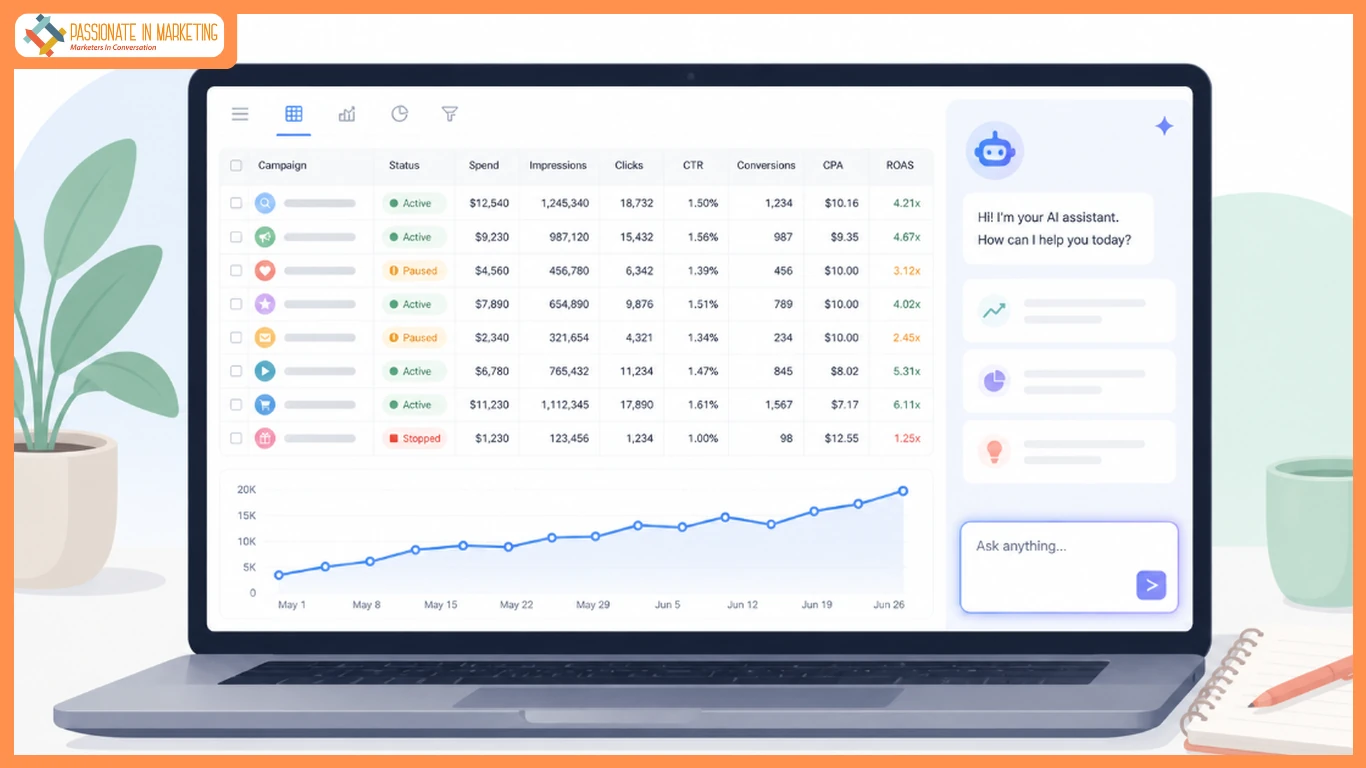
Most marketers still spend their Mondays the same way: open last week’s campaign data, copy it into a new tab, fix the date formats, rebuild the same charts, write the same commentary, and send the same status email. By the time the report goes out, the data is already four days old.
AI in Google Sheets has quietly changed that for the marketers who paid attention. The Friday report now writes itself. Lead lists are scored before the sales team logs in. Ad copy variations land in the sheet in minutes, not hours. Work that used to eat an entire afternoon now takes one prompt and a coffee break.
This piece walks through five real workflows marketers run every week with AI in Google Sheets. Not demos. Not edge cases. Each one solves a task you probably handled manually last week. By the end, you’ll know which jobs to hand off to AI, which ones to keep, and how to pick the right tool for each.
What “AI in Google Sheets” Actually Means
The phrase covers more ground than most marketers realise. Three different things now live under the same label, and they do very different jobs.
The first is built-in Workspace AI. Google ships an =AI() function and a Gemini sidebar inside Sheets, both useful for one-off prompts. You write a prompt, it fills a cell. Good for quick tasks, slow for anything at scale.
The second is formula-style add-ons. You install an extension, get a new function, and run it row by row. This works when your task fits neatly into a single column, but you’re still chaining the steps yourself.
The third is AI agents inside the sheet. GPT for Sheets is one example. You describe the outcome in plain English, and the agent reads your data, plans the steps, picks the right formulas or charts, and executes the full task. No formula chaining, no step-by-step setup. You ask for a forecast chart with a trendline, and you get exactly that.
The five workflows below all assume the third option. That’s where the real time savings live for marketers and where AI in Google Sheets actually earns its keep.
1. Cleaning Messy Campaign Data Before Reporting
Every marketer knows the pain. You export data from three ad platforms, and each one gives you different column names, date formats, and currencies. Before you can build a single chart, you lose an hour fixing the raw data.
An AI agent inside the sheet handles the cleanup in one prompt. It standardises headers, converts date formats, normalises currencies, and removes duplicate rows, no formulas, no manual fixes.
Try this prompt:
“Standardise column headers across all sheets, convert all spend values to USD, and remove duplicate campaign rows.”
Clean data is the unglamorous foundation every other workflow on this list depends on.
Skip this step, and the rest of your AI workflows return garbage.
2. Classifying Leads by Intent and Fit
Your sales team probably wastes hours every week on leads that will never close. Manual scoring helps, but it rarely gets done. A 500-lead list takes a full afternoon to review, so most teams skip it and leave sales to figure it out.
An AI agent inside the sheet scores the entire list in one pass. Feed it job titles, company size, and form responses. It labels each row Hot, Warm, or Cold and adds a one-line reason in the next column.
Try this prompt:
“Classify each lead in column F as Hot, Warm, or Cold based on job title and company size. Add the reason in column G.”
The same approach works for support tickets, survey responses, and social comments. Once you trust the labels, hand the Hot leads to sales the same day they come in.
3. Drafting Ad Copy and Subject Lines at Scale
A/B testing is only as strong as the number of variations you can ship. Most marketers aim to test 30 headlines, but writing them by hand eats up an entire afternoon, so they settle for five and move on.
An AI agent inside the sheet generates the variations for you, row by row. Drop in the product name, target audience, and offer across three columns, then have the agent fill the next columns with five headlines and three descriptions per row.
Try this prompt:
“For each row, write 5 ad headlines (max 30 characters) and 3 descriptions (max 90 characters) targeting the audience in column C with the offer in column D.”
One quick guardrail: AI does not know your brand voice. Always read every line before pushing it live. The agent saves you the typing, not the editing.
4. Building Forecast Charts With Trendlines
Every Monday, your CMO asks the same question: where will we land next quarter?
Most marketers stare at a noisy chart and guess. The line bounces around, the data is messy, and the forecast turns into a vibe check.
A trendline fixes that. It cuts through the noise, shows the underlying direction, and adds an R² value to indicate how reliable the forecast actually is. It’s built into Google Sheets, but setting it up manually takes multiple steps and menu clicks.
An AI agent inside the sheet does it in one prompt. Drop your monthly data into two columns, ask for a scatter chart with a linear trendline, and it builds the entire output: chart, trendline, equation, and R² value in seconds.
Try this prompt:
“Create a scatter chart from columns A and B, add a linear trendline, and display the equation and R² value.”
If you want the manual walkthrough first, here is a step-by-step guide on how to add a trendline in Google Sheets, including all six trendline types and when to use each.
For marketers, the real use case is simple: ad spend on the X-axis, conversions on the Y-axis. The trendline shows you exactly where extra budget stops paying off. That’s the chart you want in front of your CMO on Monday morning.
5. Auto-Building the Weekly Marketing Report
Friday afternoons follow a script: pull the numbers, paste them into a doc, rewrite the same commentary in slightly different words, and send it off. Every week, two hours gone.
An AI agent inside the sheet builds the full report from your raw data in one prompt. Keep your campaign data in one tab. Set up a “Weekly Report” tab with the structure you want: total spend, total conversions, cost per lead, top three campaigns by ROAS, and a one-line summary. Then ask the agent to fill it.
Try this prompt:
“Read the raw data in tab ‘Campaigns’. Fill the ‘Weekly Report’ tab with total spend, total conversions, CPL, the top 3 campaigns by ROAS, and a one-line commentary on the week.”
The bonus move: pair it with a Sheets-to-chat automation so the report posts itself in your team channel every Friday at 4pm. You’re no longer the bottleneck.
Wrapping Up
AI in Google Sheets stops feeling like a novelty when it saves you a full afternoon every week. Each of the five workflows above gives you back a Friday or a Monday.
Start with the one that wastes the most time today. If you build forecasts for your CMO, begin with the trendline workflow: it pays off the same day. If your Friday status email is the bottleneck, automate the weekly report first.
The real shift isn’t the AI. It’s treating your spreadsheet as a workspace where you describe outcomes instead of clicking through menus.
The opinions expressed in this article are solely the author’s and do not reflect the views or beliefs of the platform.
**’The opinions expressed in the article are solely the author’s and don’t reflect the opinions or beliefs of the portal’**

